

Printing Phone Photos Large: A Gentle Guide
A phone file can hold up on a wall, but only the original version of it. Small choices about copies, zoom, and sharpness decide the outcome.
Key Takeaways
- Start with the original file: messaging apps, social downloads, and screenshots can look identical on screen while carrying only a fraction of the detail needed for print.
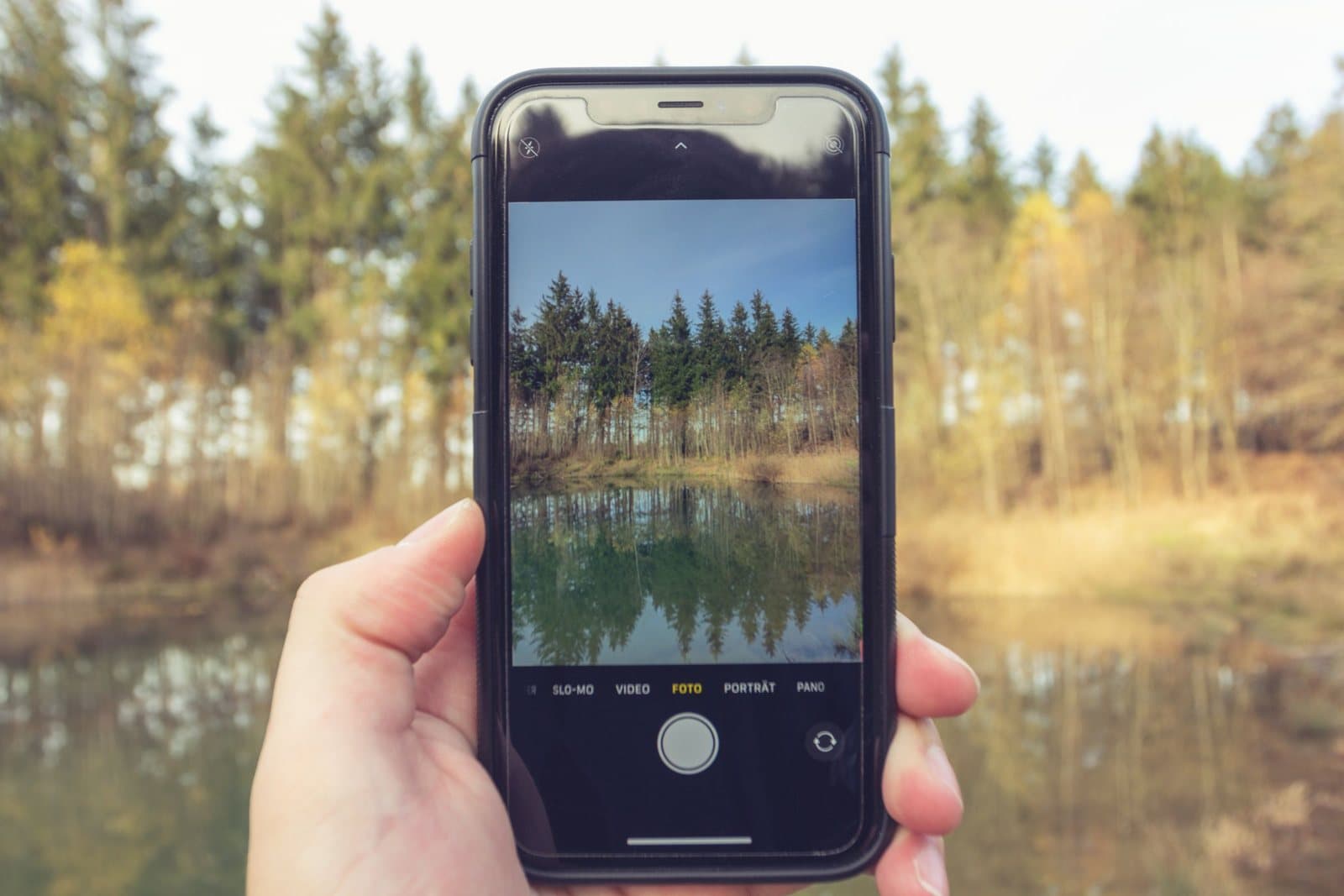
- Shoot for print at full resolution with the main lens, avoid pinch digital zoom by moving closer or cropping later, and favor sharpness over specifications.
- Good light and a clean, steady shot matter: brace the phone, wipe the lens, use burst mode for children and pets, and avoid the detail-smoothing of dim light where you can.
- Before ordering, zoom into the part that matters, straighten any tilt, crop conservatively, and send the file by a route that does not shrink it.
- Size down when a file cannot honestly support a large print, or use a set of smaller prints; a confident smaller piece reads as intentional rather than soft.
Almost every photograph worth printing now lives on a phone, and almost everyone who finds one asks the same question: it looks wonderful on a six-inch screen, but will it survive becoming a two-foot print? The honest answer about printing phone photos large is that the phone is rarely the problem. The gap between a phone photo that prints beautifully and one that disappoints is usually a handful of decisions — which copy of the file you use, which settings were on, and whether you ask the print to be bigger than the picture can honestly support. Those decisions are all yours, and most of them happen before you ever think about printing.
This guide stays practical: what to do with the phone in your hand, before and after the shutter. The deeper theory of resolution — how pixels, print size, and viewing distance actually trade off — has its own guide in this series, print resolution explained, and this page will point there rather than repeat it. Here, everything is a phone decision.
Start with the original file, not a copy of it
The single most common reason a phone photo prints poorly is that the file being printed is not the photo the phone took. Messaging apps shrink images to send them quickly. Social platforms compress what you upload and hand back a smaller version when you download it again. Screenshots capture the screen, not the picture. Each of those copies can look identical on the phone itself while carrying a fraction of the original detail — and print size is exactly where the missing detail shows.
So the first step costs nothing: go back to the original in your camera roll or photo library, and work from that file. If the photo came from someone else — a grandchild’s portrait, a friend’s shot of your dog — ask them to send the original from their library rather than forwarding a copy that has already passed through a messaging app. Many phones and sharing tools offer an “actual size” or “original quality” option when sharing; that option is the whole ballgame for printing.
A quick practical check: open the photo’s details or info panel and look at its dimensions and file size. A full original from a modern phone is a substantial file; a copy that has been through a chat app is often dramatically smaller. You do not need to memorize numbers — you only need to notice when the file in front of you is a shadow of the one the camera made.
The settings that decide it before you shoot
Phone cameras ship with settings chosen for screens and storage, not for walls. Three are worth knowing. First, resolution: most phones can capture at their sensor’s full megapixel count or at a reduced count, and the reduced setting is sometimes the default. For photos you might one day print, full resolution is the choice — storage is cheap compared to a moment you cannot retake. Second, the file quality or “high efficiency” options: efficiency formats save space by discarding a little more data. The difference is small and often invisible, but if printing matters to you, the less aggressive setting is the safer habit.
Third, and most important in practice: zoom. Pinch zoom on most phones is digital zoom — the phone crops into the image and enlarges the crop, which is the opposite of what a print wants. If the subject is too far away, move closer; if you cannot, take the photo unzoomed and crop it later, when you can see exactly how much detail the crop keeps. Phones with genuine optical zoom lenses are the exception — switching to a real telephoto lens keeps the detail that digital zoom throws away.
Megapixels, in phone terms
Megapixel counts are marketing’s favorite number, so here is the useful translation. A current phone’s main camera captures enough information for the sizes most people actually print — the pieces that hang over a desk, a dresser, or a reading chair — viewed from the distance those rooms impose. Where megapixels run out is at the extremes: a very large print of a heavily cropped image, asked to hold up at arm’s length. That combination is rare in real homes, and even then the answer is usually a sizing decision, not a new camera.
Two habits get more from the megapixels you have. Use the main lens for anything you may print: the ultra-wide and selfie cameras on most phones have smaller sensors and softer detail, and they are meant for fun, not for walls. And remember that a crop spends megapixels — framing the shot properly in the moment keeps the full count working for the print, instead of half of it being trimmed away afterward.
Printing phone photos large: sharpness beats specifications
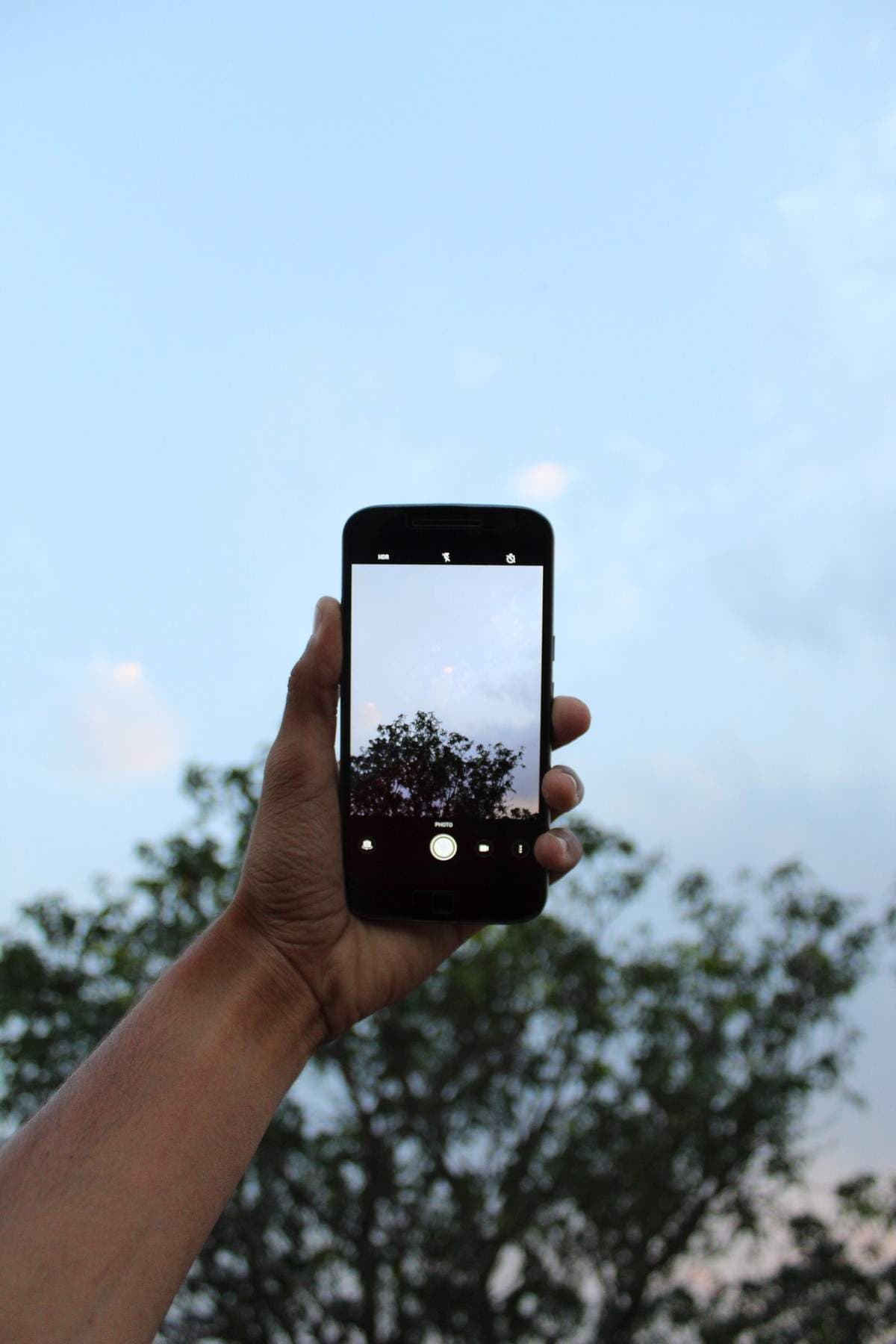
Given a choice between a modest file that is perfectly sharp and a huge file that is slightly blurred, a print prefers the sharp one every time. Enlargement magnifies whatever the lens captured, including its flaws, and the commonest flaw in phone photography is movement — the subject’s or yours. Hold the phone in both hands, brace your elbows, and let the camera settle for a breath before you tap. For children and pets, burst mode is a printing tool, not a gimmick: twenty frames cost nothing, and the one where the eyes are open and the head is still is the one that deserves the wall — sharpness where the eye lands sits near the top of the checklist for choosing photos that print well on canvas.
Light is the other half of sharpness. Phones work hardest — and noisiest — in dim light, where their software smooths detail away to hide grain. The same scene beside a window, or a minute after stepping into shade outdoors, gives the sensor an easy job and the print a cleaner file. And do the embarrassingly simple thing: wipe the lens. A phone lens lives against hands, pockets, and kitchen counters, and a soft fingerprint haze is responsible for more “why is this photo dull?” moments than any specification ever printed.
A two-minute routine before printing phone photos large
Before a phone photo goes anywhere near a print order, give it the same two minutes you would give a proof. Open the original — not a copy — and zoom in on the part of the image that matters most: the faces, the subject, the detail you fell for. What you see at full zoom is the truth the print will tell. Straighten the horizon if the shot leans; a one-degree tilt is a shrug on a screen and a permanent annoyance on a wall. Crop conservatively, if at all — every crop spends the resolution you have been protecting, so trim what is dead at the edges and keep the rest.
Then send the file by its least destructive route. Emailing a photo to yourself often shrinks it; moving it by cable, cloud library, or the printer’s own upload at full size does not. If a service offers only a compressed path, that fact alone is information about the service. The routine is not glamorous, but printing is unforgiving of shortcuts taken at exactly this last step, and two minutes of care is what stands between the file your camera made and the file that reaches the wall — the journey our complete guide to photo to canvas follows from upload to hanging.
When sizing down is the smart move
Sometimes the honest answer about printing phone photos large is that a particular photo wants to be a medium print, not a large one — an older phone’s file, a crop you love, a low-light shot whose mood matters more than its detail. Treat that as a design decision rather than a defeat. A sharp, confident smaller print looks intentional; a large soft one looks like a mistake. Prints are also viewed from where people stand and sit, not from six inches away, and a well-chosen size that respects the file will read as crisp from every seat in the room.
The other move is to think in sets. A single giant print asks everything of one file; a group of three or four smaller prints from the same day asks very little of each and often tells the story better. Phone photos, which tend to come in sequences — the trip, the birthday, the season — are natural set material, and a set forgives the one frame that is more memory than masterpiece.
When we open our own custom printing, this is the standard we intend to be judged by: honest guidance about the size a file can support, given before you order rather than after. Whatever service you use, the questions worth asking are the ones our FAQ collects — and when your photo is ready, a canvas print is the format that forgives the most, because its texture is kind to the slight softness phone files can carry. Choose the original file, shoot at full strength, keep it sharp — and the phone in your pocket is a better camera than the question assumes.
More in Custom Photo & Gifting

Continue exploring: Custom Photo & Gifting guides · All guides